
Remote Control Beta for Pro
Your computer, from anywhere.
Send it from your phone. It runs at home, on your files.
Three steps.
Then leave the desk.
Remote control starts on the computer you want to reach. After that, any browser will do.
- 01
Switch it on
In Perch Desktop, open the menu where you choose where a message runs and turn on Remote control.
- 02
Send from anywhere
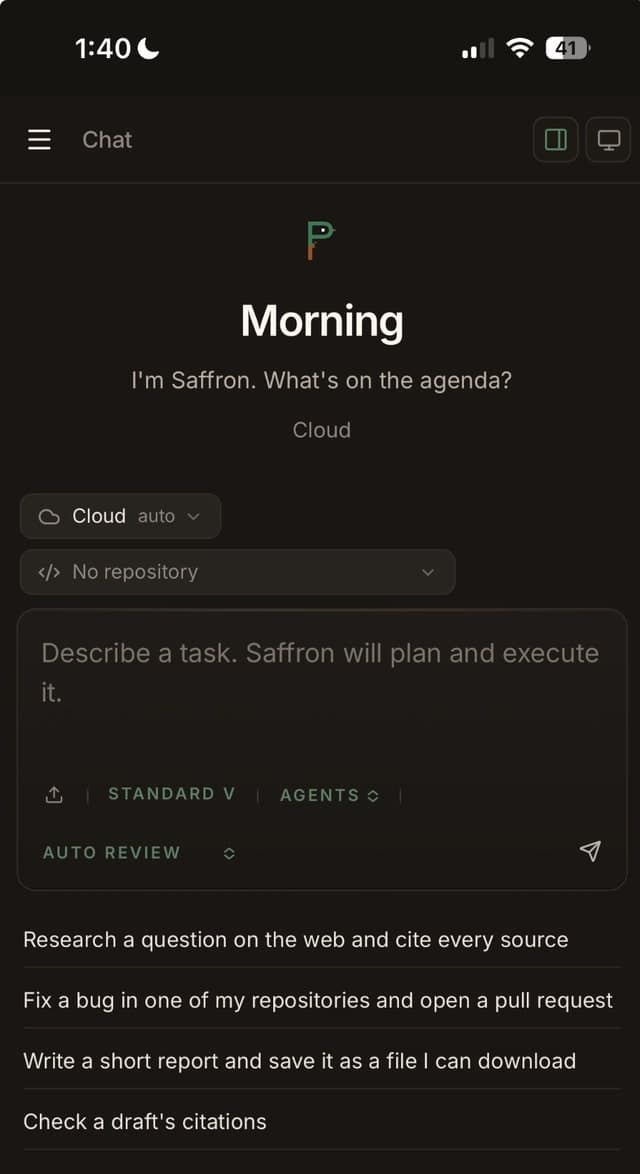
Open Perch Terminal on the web, from another computer or your phone. Your computer now shows up in the same menu, with a dot that says whether it is online.
- 03
It runs at home
The work happens on your machine, with its folders and everything Perch Desktop can reach. Approvals come to whichever screen you are on.
Auto, by defaultWeb and phone
It goes to your computer when it can.
Leave the menu on Auto and a message runs on your computer while it is awake with Perch open, and in the cloud otherwise. The pill always says where the next message will go, so nothing moves without you seeing it.
AutoYour computersCloud


What stays putYour files, your machine
Nothing moves to the cloud.
The messages do.
Files are read and commands run on your computer, the same as when you are sitting at it. Only the conversation travels.
Outbound only
Perch Desktop opens the connection itself. Your computer accepts no inbound connections and opens no ports.
Approvals come to you
Anything that needs a yes waits for you, on the web or your phone, before it runs on your computer.
Off means off
Switch Remote control off in Desktop, or remove the computer from the web menu, and it stops taking messages.
Two places to run.
Pick per message. Same agent, same thread, either way.
Your computer
Remote control. Best when the job needs what only lives on your machine.
- Your local folders, files, and apps
- Needs the computer awake with Perch Desktop open
- Never counts toward cloud workspace hours

The cloud
Cloud agents. Best when the laptop is shut.
- A fresh private workspace for each session
- Your GitHub repositories and connected tools
- Keeps going with every device closed

Leave the desk. Keep the desk.
In beta for Pro. Turn it on in Perch Desktop, then pick up from any browser.
or open Perch Terminal on the web →